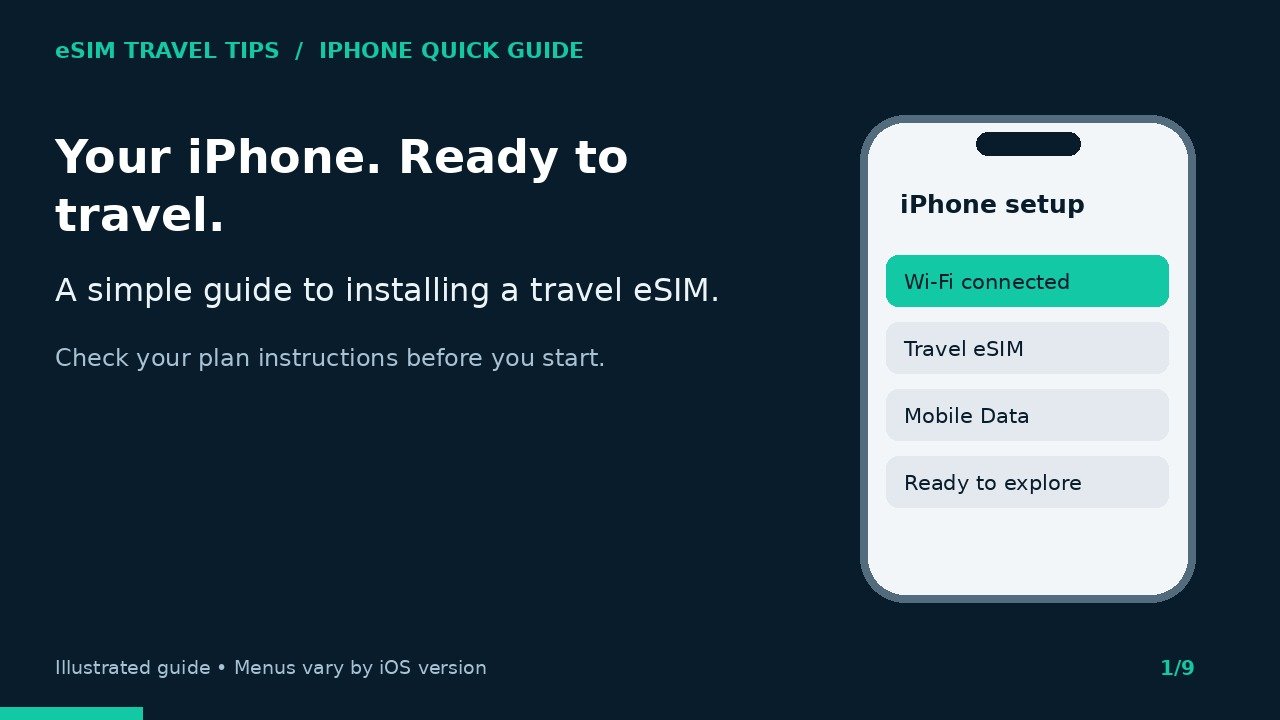
Heading overseas? This guide explains how to install a travel eSIM and choose the right data settings on iPhone, Samsung Galaxy and Google Pixel. Watch the short iPhone walkthrough, then follow the written steps for your phone.
Watch: iPhone travel eSIM setup
This 93-second illustrated walkthrough uses on-screen instructions and has no narration. Pause whenever you need to follow a step. Menu names can vary with your phone and software version.
Before you start
- Confirm your exact phone model supports eSIM and is unlocked for use with another provider.
- Connect to reliable Wi-Fi and have your provider’s QR code or installation details ready.
- Read your plan’s activation rules. Some plans start their validity period at installation; others start when they connect to a supported network. Install early only when your plan allows it.
- Keep the QR code private. Many eSIMs cannot be reinstalled using the same code.
iPhone: install your travel eSIM
- Open Settings > Mobile Service > Add eSIM > Use QR Code. Depending on your region and iOS version, the menu may say Mobile, Cellular or Mobile Data.
- Scan your provider’s QR code from another device or a printed copy. Alternatively, open Camera, scan the code and tap the mobile-plan notification.
- Follow the installation prompts. Enter a confirmation code only if your provider supplied one.
- Label the new line Travel so you can distinguish it from your home SIM.
QR code on the same iPhone? On iOS 17.4 or later, you can touch and hold a provider QR code in a supported email app or browser, then tap Add eSIM. If this option is unavailable, display it on another screen or use the manual details supplied by your provider.
iPhone: when you arrive
- Turn on the Travel line. Under Mobile Service, open Mobile Data and select Travel.
- Turn Allow Mobile Data Switching off to stop automatic switching to your home SIM.
- Open the Travel line’s settings and enable Data Roaming only if your travel provider requires it. Many travel eSIMs need this to connect.
- Keep data roaming off on your home SIM. If you leave that line enabled, calls and SMS can still incur carrier charges. To avoid using your home line abroad, turn it off; you will not receive its regular calls or SMS, including bank codes.
Android: Samsung Galaxy
On a compatible Galaxy, go to Settings > Connections > SIM manager > Add eSIM > Scan QR code. Older software may say SIM card manager, Add mobile plan or Scan carrier QR code. Scan your provider’s code and follow the prompts.
At your destination, enable the travel eSIM and select it for Mobile data in SIM manager. Disable automatic data switching or data switching and backup calling where available. Use the provider’s roaming instructions for the travel eSIM, and avoid roaming on your home SIM. If your phone does not offer separate roaming controls for each line, turn the home SIM off before enabling roaming for Travel.
Android: Google Pixel
Open Settings > Network & internet > SIMs > Add SIM > Set up an eSIM. Follow the prompts to scan the provider’s QR code. Some versions say Download a SIM instead.
At your destination, enable the travel eSIM and choose it as your mobile-data SIM. Disable automatic data switching if offered. Enable roaming for the travel eSIM only when instructed by your provider. Keep home-SIM roaming off, or disable the home line if you do not need its calls and SMS.
Other Android brands use different menus. Search Settings for eSIM or check the manufacturer’s guide. An absent Add eSIM option can indicate an unsupported model or regional variant.
Check that it works
At your destination, switch Wi-Fi off briefly and open a webpage. If it does not load, check that Travel is enabled and selected for data, that your destination is covered and your plan is valid. Follow your provider’s roaming and APN instructions, then try a restart. Contact your provider if you are still stuck. Do not delete the eSIM as a troubleshooting step unless your provider tells you to.
A data-only travel eSIM does not include a regular phone number for calls and SMS. Apps such as WhatsApp can use its data connection.
Ready for your next trip?
Browse travel eSIM plans at 3gmrc.com.au. Check device compatibility, destination coverage and activation conditions before purchasing.
Manufacturer references
Setup steps checked on 7 October 2026: Apple eSIM setup, Apple travel eSIM guidance, Samsung eSIM installation and Google Pixel eSIM setup. Your provider’s plan instructions take priority for activation timing, roaming and APN settings.