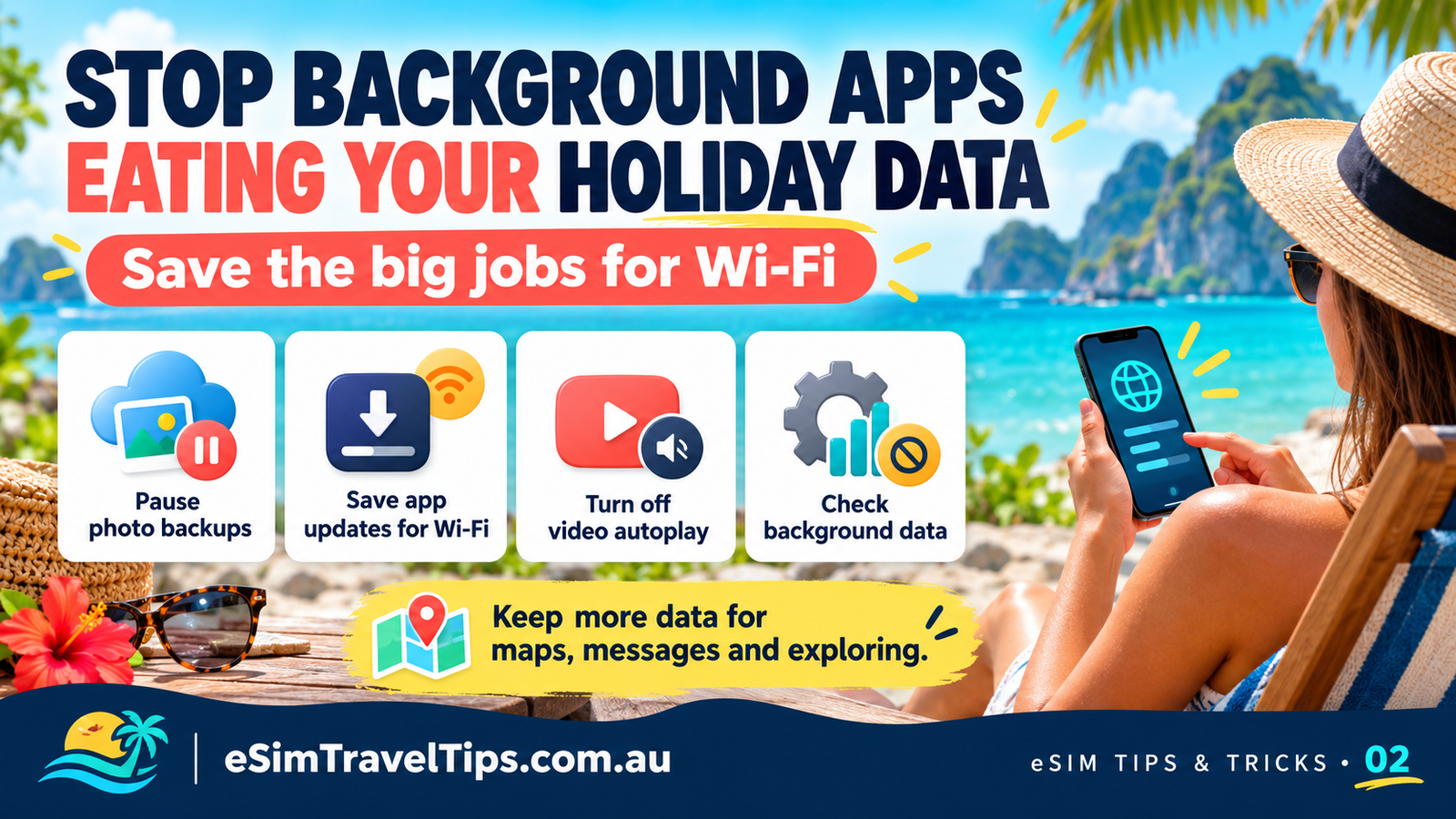
Your travel data should help you find your hotel, message the family and explore. Photo uploads, updates and autoplay can use that same allowance, sometimes without you noticing. Here is a practical way to keep the big jobs for Wi-Fi.
1. Pause photo uploads over mobile data
Take the holiday photos. Just check how they are being uploaded.
In Google Photos, tap your profile picture, then Photos settings > Backup > Mobile data usage. Review the options and disable mobile-data backup, including roaming backup, where available. Labels can vary by app version.
For iPhone users, Low Data Mode can pause iCloud Photos updates and automatic backups. Other photo apps may have their own mobile-upload settings, so check those separately.
Important: waiting for Wi-Fi means new photos may not be backed up yet. Connect to reliable Wi-Fi regularly and confirm the backup has completed. Do not delete local photos before checking.
2. Use your phone’s data-saving setting
iPhone: open Settings > Mobile Service, Cellular or Mobile Data and select your travel line. Look for Low Data Mode. Depending on the connection and software, it may be inside Mobile Data Options > Data Mode. Turn it on for the travel line.
Low Data Mode reduces background activity, automatic downloads and some streaming quality. Apps respond differently, so it is still worth checking their own settings.
Google Pixel: open Settings > Network & internet > Data Saver and switch it on. This limits most background mobile-data use; apps you are actively using can still consume data.
Other Android brands may use a different path. Search Settings for Data Saver or check the manufacturer’s instructions. If an important app stops working as expected, review its unrestricted-data exception rather than allowing every app unrestricted access.
3. Keep updates and downloads for Wi-Fi
Review your app store’s automatic-update preferences and choose Wi-Fi-only updates where offered. Download entertainment before leaving or while connected to reliable Wi-Fi. Save large software updates and cloud synchronisation for a suitable connection too.
You do not need to switch mobile data off completely. The aim is to control the heavy jobs while keeping the apps you need available.
4. Check autoplay inside your apps
Look in your social and streaming apps for autoplay, data saver or video-quality controls. Choose no autoplay or Wi-Fi-only playback where available. Do not assume a phone-wide setting controls every app.
Give yourself a quick daily check
Review which apps have used mobile data and check your remaining allowance with your provider. Your phone’s usage counter and the provider’s records may use different periods, so use the provider’s balance when deciding whether you need more data.
These settings manage data usage. They do not replace your travel eSIM’s required roaming settings or stop all charges on an enabled home SIM. See our travel eSIM setup guide for that part.
Choose an allowance that suits your trip at 3gmrc.com.au. Check coverage, validity and plan conditions before purchasing.
References checked 7 October 2026: Apple Low Data Mode, Google Pixel Data Saver and Google Photos backup settings. Menu names vary with software.